
 Production
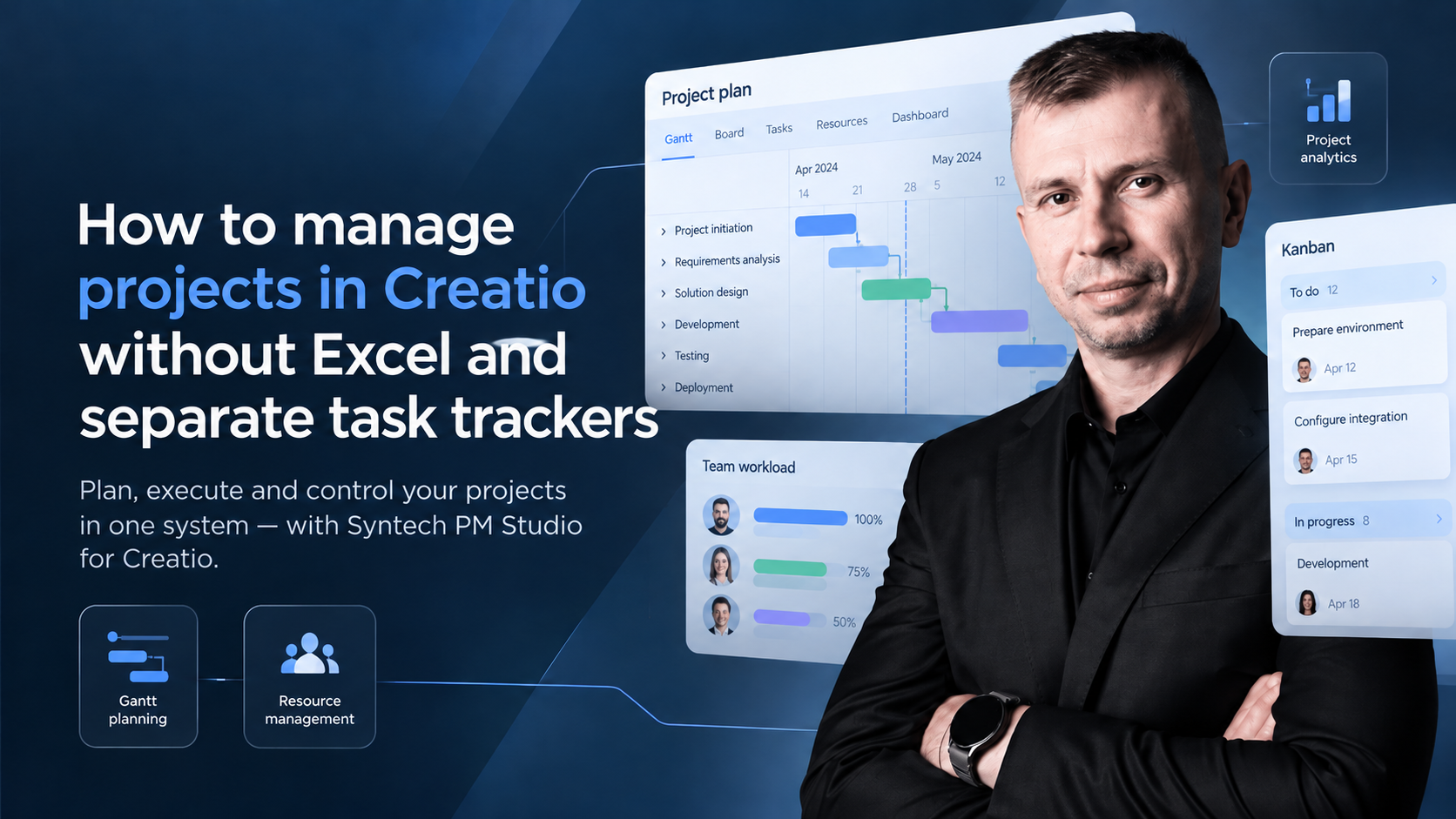
How to organize project management in Creatio without Excel and separate task trackers
Excel for planning, a task tracker for tasks, CRM for clients, and reports for management - in separate presentations. Sound familiar?
Project management
Kanban, Gantt, scheduler and tasks — inside Creatio, without a separate task tracker.
When a company runs several projects simultaneously, the problem is often not the number of tasks, but that information about them is scattered across different tools.
The manager updates deadlines in a spreadsheet. The team changes statuses in the task tracker. The head asks for current progress, and to answer, data has to be collected from multiple sources.
As a result, project management turns into constant information synchronization.
But if a company already works in Creatio, is it necessary to use a separate system for project management?
No. Let's look at how to organize planning, execution, resource control, and analytics without constantly switching between different services.
Why Excel and separate task trackers are no longer enough
Excel is good for calculations, analysis, and working with tabular data. Task trackers help distribute tasks and control their execution.
Problems arise when these tools work in isolation.
For example, a company is simultaneously implementing ten client projects. Each has a budget, deadlines, responsible parties, task dependencies, and its own risks.
If data is distributed across multiple systems, typical difficulties arise:
Different versions of information. Deadlines in Excel have already changed, but the team continues to work according to the old plan.
Lack of a common picture. The manager sees individual tasks but doesn't understand which projects are at risk.
Manual reporting. To prepare a report, the manager needs to check statuses in several tools.
Complex resource planning. One specialist may be involved in several projects, but their workload is not always visible.
Gap between sales and execution. Client data remains in the CRM, while project implementation is tracked separately.
The more projects and participants, the harder it is to maintain information consistency.
Therefore, the task is not just to replace Excel with a new tool, but to create a unified project management environment.
Is it possible to manage projects directly in Creatio?
Yes. Creatio is a platform for CRM and business process automation that can be extended with additional applications.
For full-fledged project management, SYNTECH has developed Syntech Project Management Studio for Creatio (PM Studio).
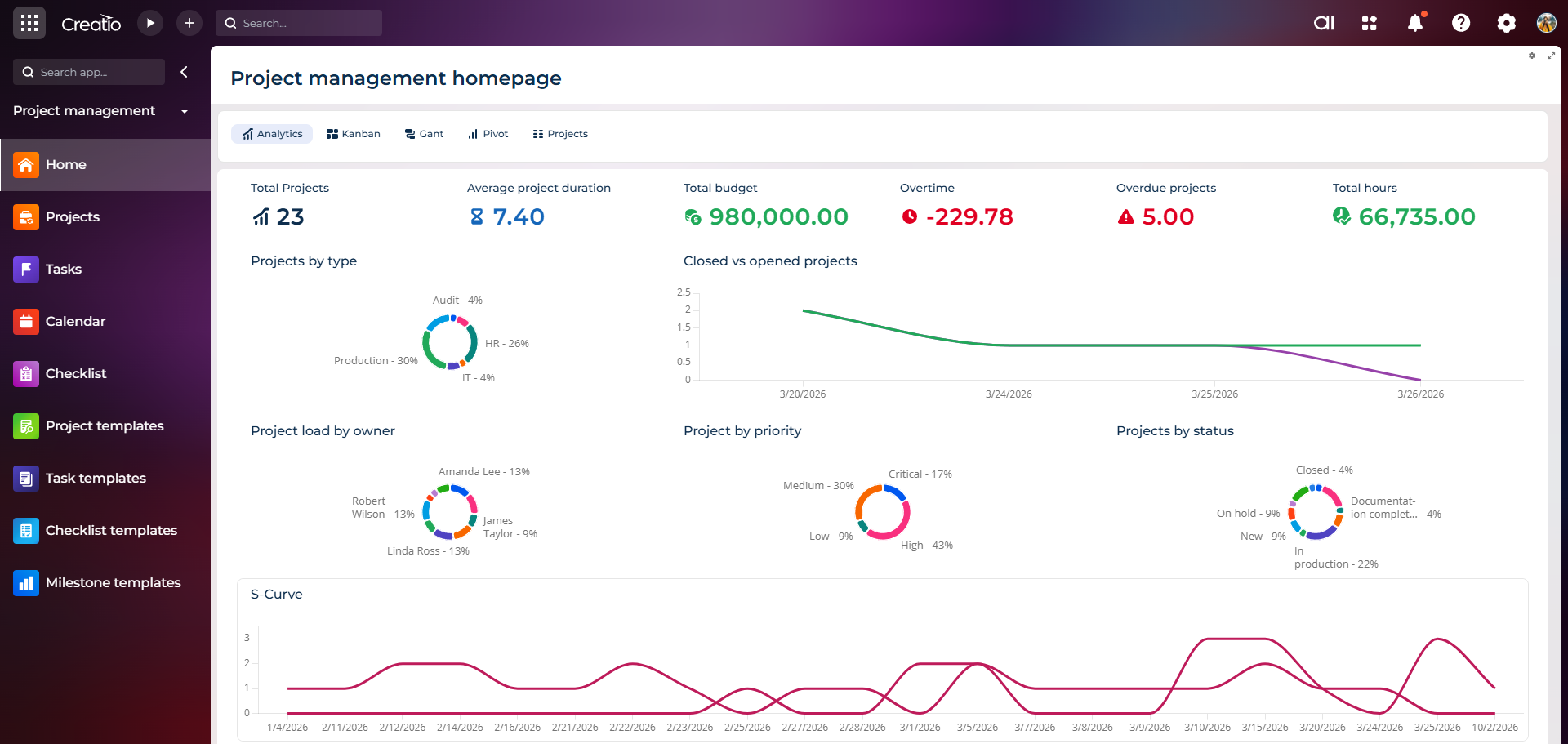
This solution allows you to organize planning, execution, and monitoring of projects directly in Creatio.
Instead of separate workspaces for tasks, schedules, and reports, the team gets tools to manage:
projects and their structure;
tasks and responsible parties;
deadlines and dependencies;
resources and workload;
budgets and time expenditures;
progress and project analytics.
Let's consider how to organize this in practice.
Step 1. Create a unified project structure
The first problem to solve is the lack of a standardized approach.
When each manager creates their own tables and planning formats, comparing projects becomes difficult.
In PM Studio, you can form a project structure: define stages, tasks, subtasks, milestones, and responsible parties.
For example, for CRM implementation, the structure might look like this:
Project: CRM Implementation
Business process analysis.
Solution design.
System configuration.
Integrations.
Testing.
User training.
Launch.
Each stage can be detailed down to specific tasks.
For typical projects, templates for Projects, Tasks, Milestones, and Checklists are available.
This is especially useful for teams that regularly implement similar projects and don't want to create their structure from scratch every time.
Step 2. Plan deadlines and dependencies via Gantt
A simple task list doesn't always show how changing one deadline will affect other work.
For example, the team cannot start testing until integration setup is complete. If the previous stage is delayed, the subsequent schedule needs to be reviewed.
For such planning, Gantt View — a Gantt chart in Creatio — is used.
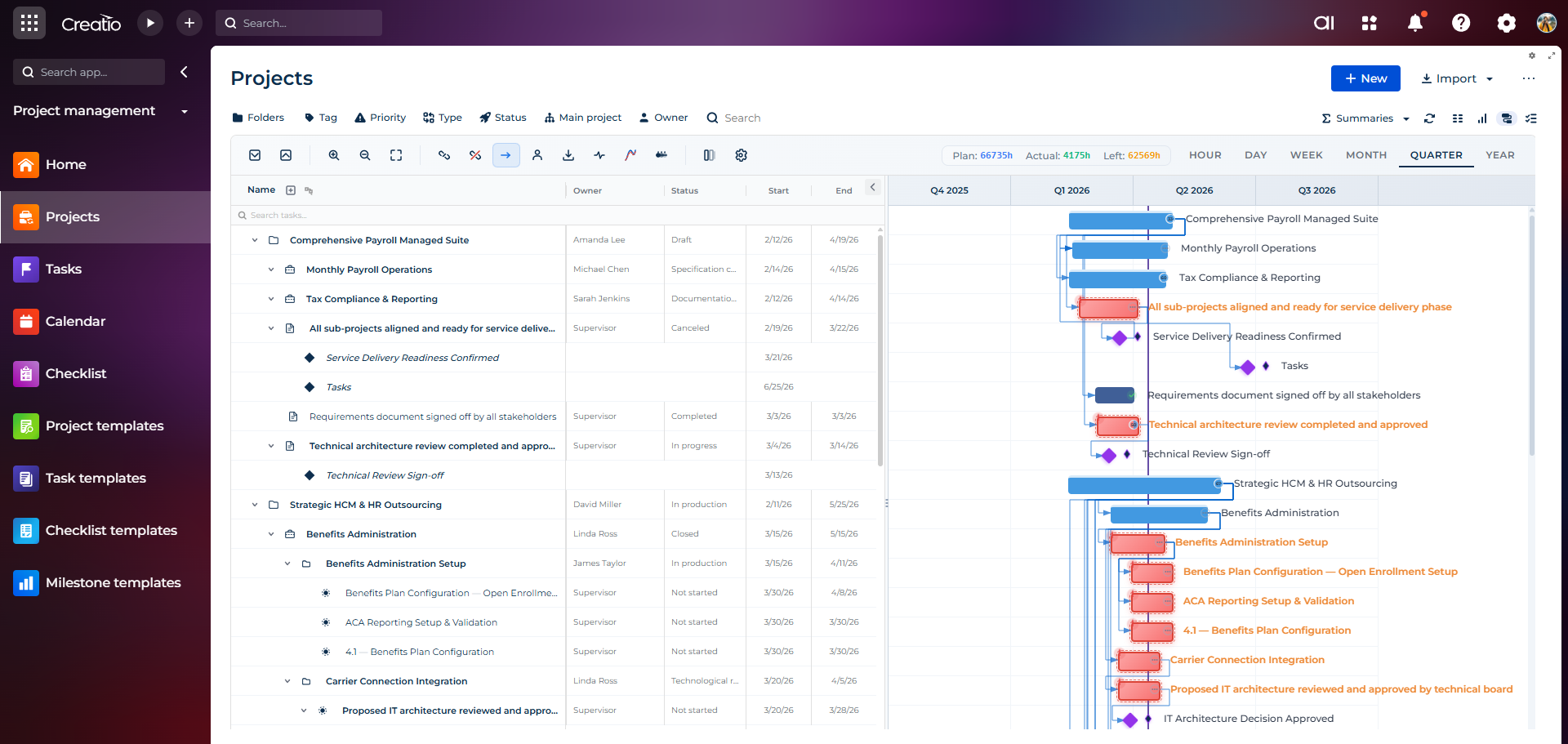
It helps to:
display tasks on a timeline;
establish dependencies between works;
control milestones;
change deadlines through a visual interface;
analyze the sequence of work execution.
Thanks to this, the project manager sees not just a list of tasks, but the interrelationship between them.
This is especially important for projects with many parallel processes and interdependent stages.
Step 3. Organize daily work via Kanban
The Gantt chart shows the overall plan. But for daily work, the team often needs a simpler tool.
For example, to understand:
which tasks have not yet started;
what is currently in progress;
which tasks are awaiting review;
what has already been completed.
For this, PM Studio uses Kanban View.
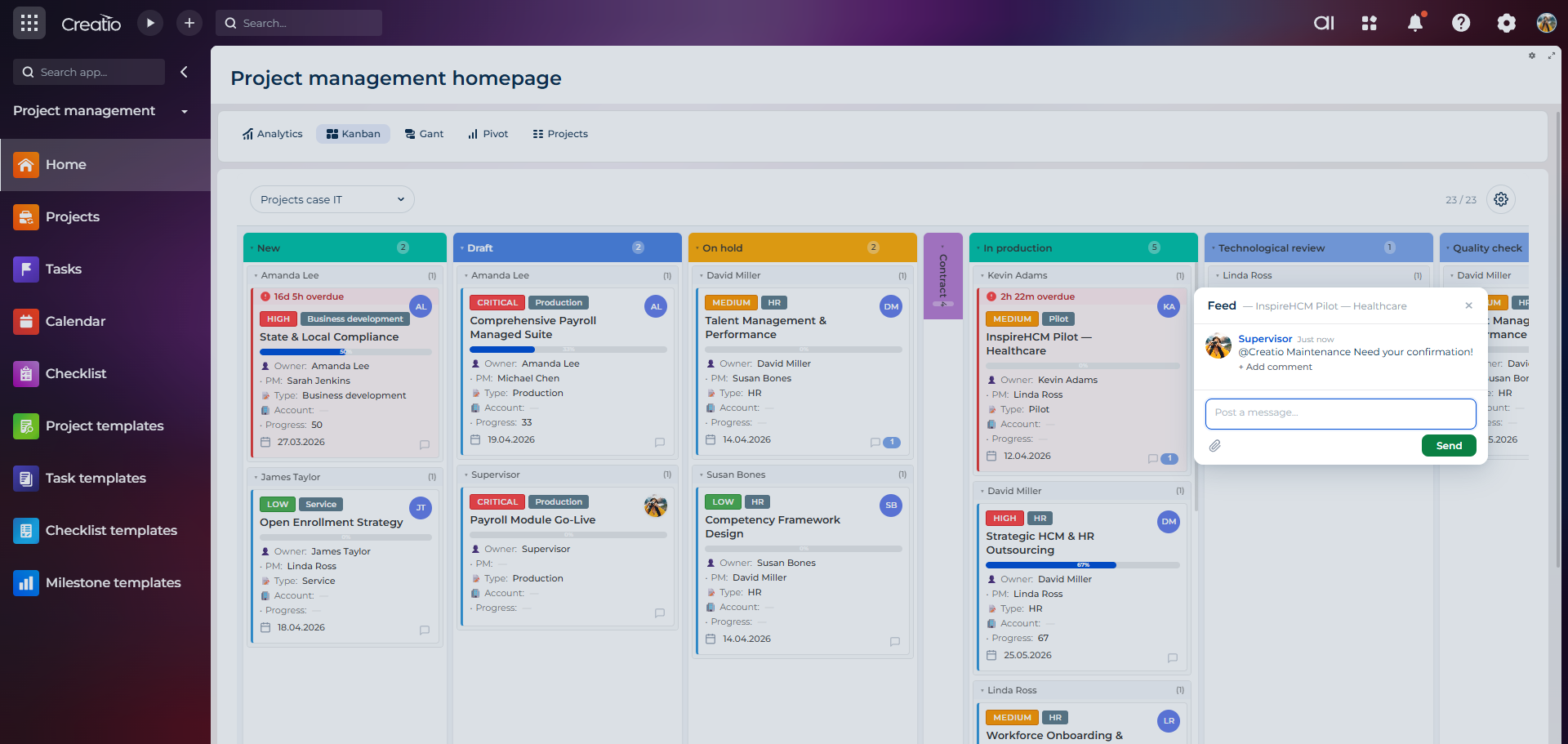
Tasks are displayed as cards that can be moved between stages according to their status.
The team sees the current work, and the manager can quickly identify at which stages tasks are accumulating.
Kanban is especially useful for delivery teams, internal IT departments, operational processes, and projects with a large number of short tasks.
Gantt answers the questions “when and in what sequence?”, while Kanban answers “what is happening now?”.
Together, they provide two complementary views on project execution.
Step 4. Control resources and team workload
One of the most complex aspects of project management is resource allocation.
Suppose one analyst is simultaneously involved in three projects. Each manager plans tasks in their own file, so the specialist's total workload remains unnoticed.
In such a situation, even correctly compiled schedules can turn out to be unrealistic.
PM Studio supports resource planning and control of time planned for work execution.
This helps managers match project needs with team availability and make informed decisions about priorities.
It's important not only to see deadlines but also to understand whether the team has enough resources to meet them.
Step 5. Transfer project analytics to Creatio
When statuses, deadlines, and metrics are stored in different files, preparing a report becomes a separate task.
For the project manager, this is additional work. For the COO or PMO, it's a risk of making decisions based on outdated information.
In PM Studio, dashboards, analytical views, and Pivot are used for project analysis.
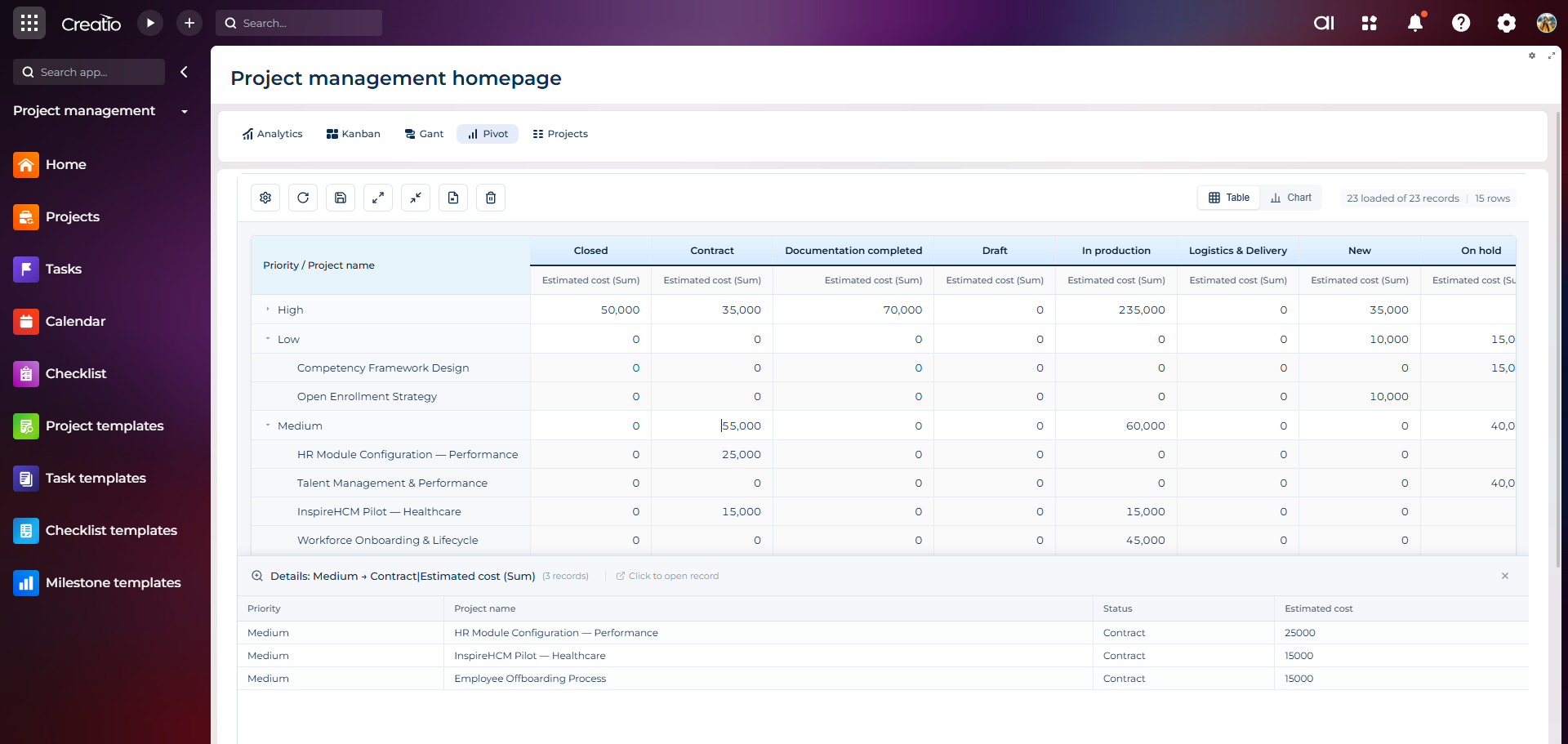
This allows for organizing control of key indicators:
project execution status;
planned and actual deadlines;
budgets and time expenditures;
resource workload;
tasks that require attention.
The composition of indicators and the logic of dashboards depend on the system configuration and company needs.
The main advantage of this approach is the ability to work with project data in the same environment where the team manages work execution.
Step 6. Use AI and templates to reduce manual work
A significant part of a project manager's time is spent not on making decisions, but on preparatory and repetitive operations.
Creating a new project structure. Distributing tasks. Checking the current status of work. Preparing information for a report.
Syntech PM Studio includes AI Agent and templates for working with projects.
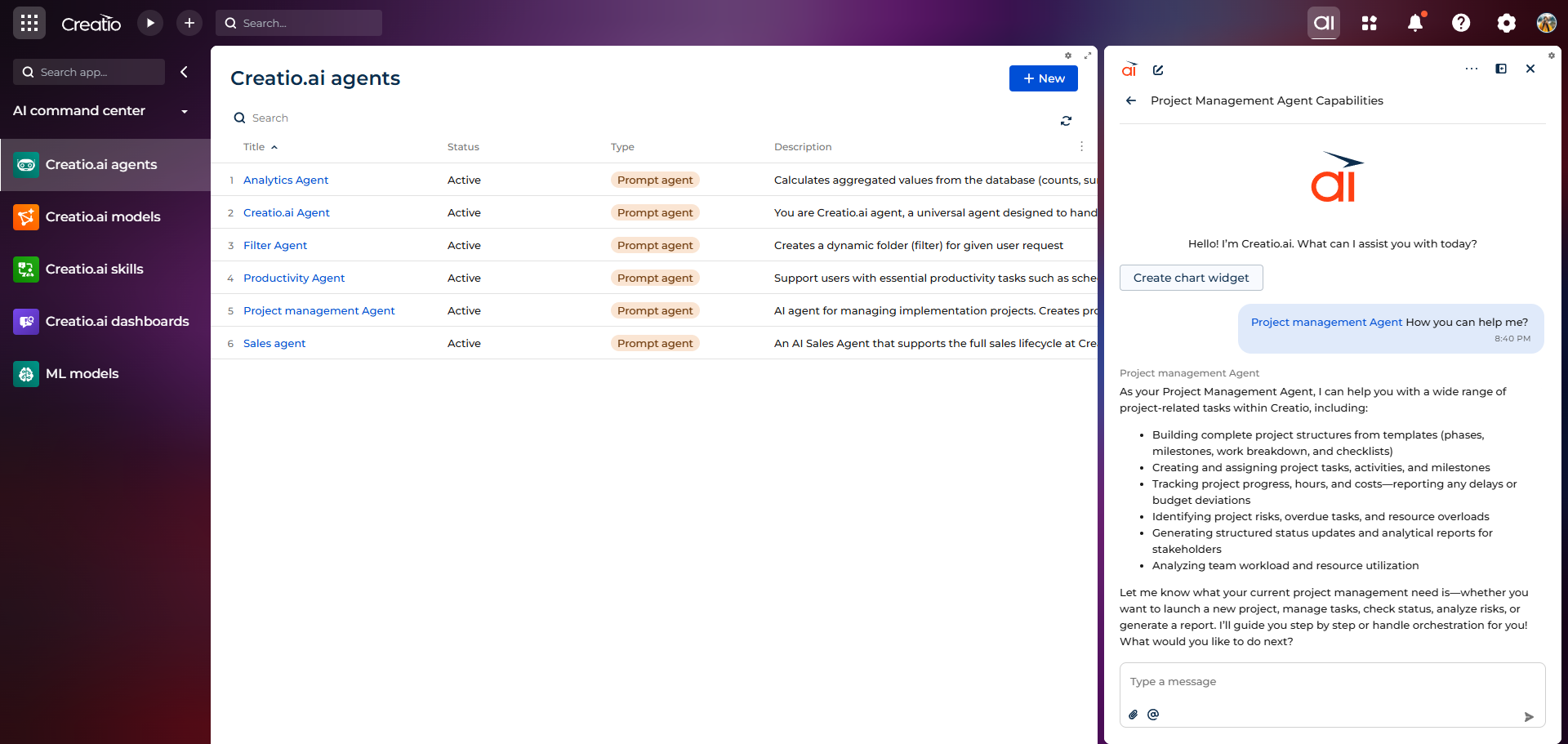
AI functionality helps automate individual planning operations, analyze project information, and support the manager's work.
At the same time, automation does not replace management decisions: priorities, resources, and critical changes remain under the control of responsible specialists.
How to switch from Excel to project management in Creatio
Data transfer alone will not solve the problem if the team continues to work by old rules.
Therefore, the transition should be organized in stages.
1. Audit tools.
Determine where projects, tasks, schedules, budgets, and reports are currently stored. Find duplicated information.
2. Align data structure.
Define mandatory fields for projects and tasks: status, responsible person, deadline, priority, planned time, and other necessary indicators.
3. Set up the workspace in Creatio.
Form the project structure, roles, Gantt and Kanban views, and rules for working with tasks.
4. Transfer one pilot project.
It's not necessary to move the entire company at once. Start with one project and check if the configured tools are sufficient for the team.
5. Set up reporting and control processes.
Determine which metrics are needed by managers, PMO, and leadership. Establish unified rules for information updates.
6. Scale the approach.
After testing the pilot scenario, use templates and the agreed-upon structure for subsequent projects.
The goal of the transition is not just to remove Excel, but to create a process where data is updated where the work is performed.
Do you need to completely abandon Excel?
Not necessarily.
Excel remains useful for one-time calculations, additional analysis, and data export.
But if spreadsheets are the main source of information about statuses, responsible parties, deadlines, and project progress, this creates a dependency on manual updates.
For systematic project management, it is important that core information is stored centrally.
Similarly, separate specialized tools may remain necessary for certain teams. The goal is not to replace all programs at any cost, but to eliminate unnecessary duplication.
Who will benefit from project management in Creatio
PMO and project managers. For planning multiple projects, controlling tasks, dependencies, resources, and deadlines.
COO and operational managers. For obtaining a consistent picture of work execution and controlling operational priorities.
IT and delivery teams. For managing implementation projects, development, integrations, and internal changes.
Companies already working in Creatio. For expanding the existing environment with project management tools without creating another isolated workspace.
Conclusion: Fewer tools - more control
The problem with Excel and separate task trackers is not the programs themselves. It arises when the team is forced to manually transfer data between them and spend time coordinating information.
Project management in Creatio allows for building a different approach: projects, tasks, deadlines, resources, and analytics work in a single environment.
Syntech Project Management Studio for Creatio extends the platform with Gantt, Kanban, hierarchical planning, AI, and project analytics tools.
This helps transition from fragmented tables and statuses to structured work execution management.
Want to see how PM Studio will work in your company?
Familiarize yourself with the solution's capabilities and request a demonstration using your own projects.
Get a DEMO
Next step
See a live board demo
15–30 minutes, no slide decks: we show the solution on your data and tell you if it fits.