
How to set up notifications in Creatio without code | SYNTECH
On this page
SYNTECH has released Syntech Notification Center for Creatio, an application on Creatio Marketplace for no-code notification setup. A single rule in Syntech Notification Center defines which object to track, which records qualify, who receives the notification, and through which of the seven channels.
Syntech Notification Center was released on Creatio Marketplace on November 25, 2026. The SYNTECH app runs on Freedom UI and is compatible with Creatio 8.3.4 and newer versions.
Events happen in CRM every day: a deal is won, a case is overdue, a new lead arrives. The SYNTECH team built Syntech Notification Center around three priorities: an intuitive interface, simple setup, and personal control for every employee.
What Syntech Notification Center is and what the interface looks like
Syntech Notification Center sends notifications when something happens to a record of any Creatio object. A record is created, modified, or deleted, an upcoming date approaches, or a business process triggers a rule.
Syntech Notification Center has seven delivery channels:
email
Creatio bell notification
mobile push
messenger: Telegram, WhatsApp, Facebook, or SMS via Twilio in Creatio Omnichannel
SMS
record feed
webhook
A single console instead of scattered settings
In Syntech Notification Center, administrators get a "Notification Center" workplace with a console featuring five tabs: rules, delivery log, channels, webhooks, and settings.
At the top of the console, Syntech Notification Center displays key metrics: active rules out of the total count, sent and failed notifications over 24 hours, the queue, and the 7-day delivery success rate.
Each rule in Syntech Notification Center is represented as a card. It displays the object, event, channels, and condition in plain words, for example, "Stage changed to Closed won AND Amount ≥ 10000". Below the condition, it shows how many times the rule was triggered and how many notifications were sent or failed over 7 days.
A rule in Syntech Notification Center is enabled and disabled with a single toggle on the card. A duplicated rule opens as inactive, so it can be safely modified.
Out-of-the-box analytics
The Syntech Notification Center homepage displays deliveries by day over 30 days, distribution by channel, failures by channel, top rules, and recent failures.
Dashboards in Syntech Notification Center sections show delivery health, channel efficiency, rules that have never triggered, and webhook statuses.
How to set up a notification rule in Creatio in 7 steps
A rule in Syntech Notification Center is created in a step-by-step no-code editor. There is a single Save button at the top of the editor, and if you close the page with unsaved changes, Creatio will prompt you for confirmation.
General. Rule name, code for triggering from a business process, "Active" and "Mandatory" toggles. Recipients cannot unsubscribe from a mandatory rule in Syntech Notification Center.
Object and event. Any Creatio object, standard or custom. Events: creation, modification, deletion, date reminder, manual trigger, or process. For modifications, you can select the fields tracked by the rule in Syntech Notification Center.
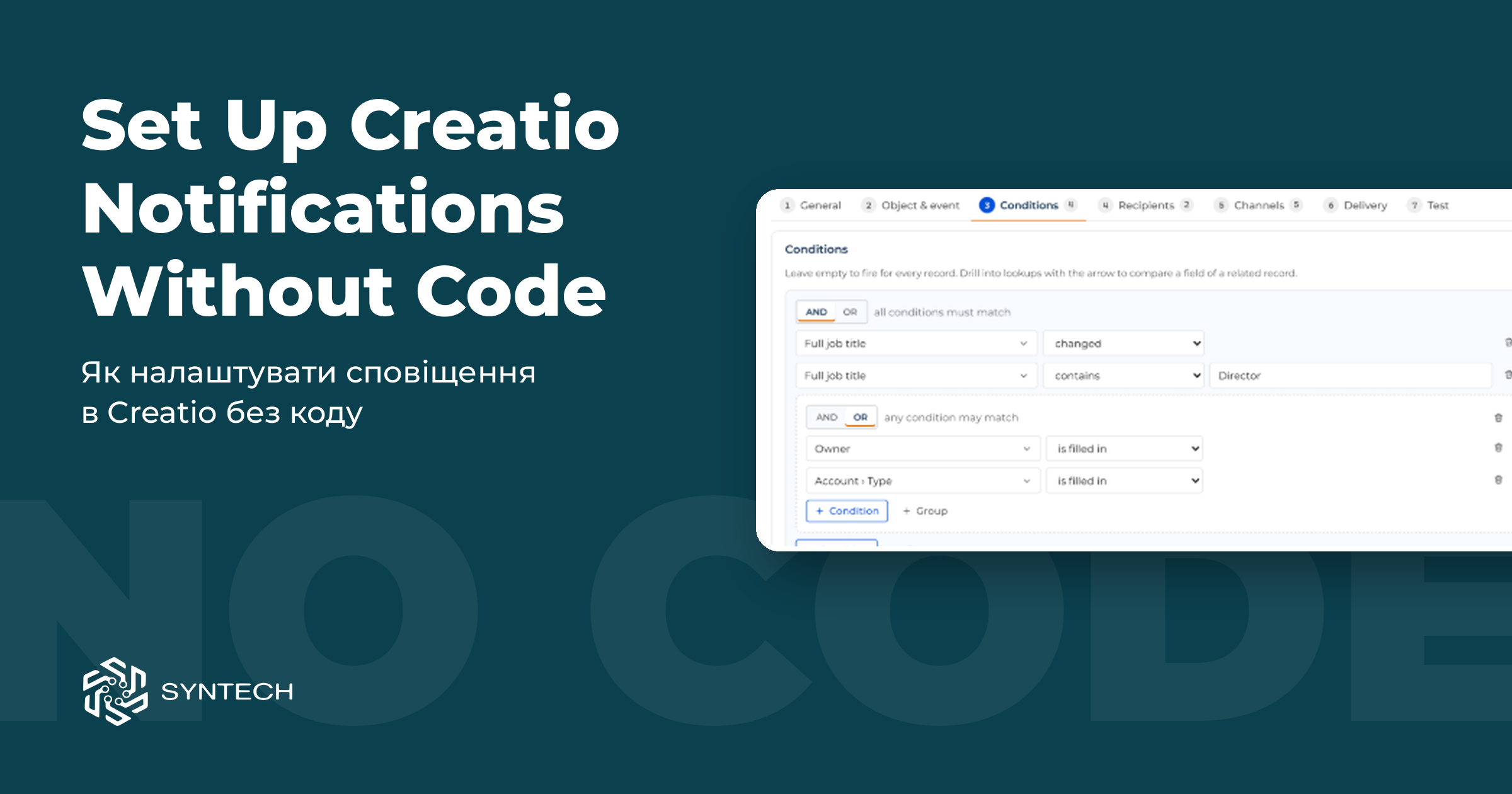
Conditions. AND/OR groups, nested groups, related record fields, as well as "changed", "changed to", "changed from" operators. This allows Syntech Notification Center to react only to the required transition, for example, when the stage changed to "Closed won".
Recipients. Contact, role or group, record field (for example, owner), fixed address, or change author. With a single checkbox, Syntech Notification Center avoids notifying a user about their own changes.
Channels. Each channel has its own message text. The Macro button in Syntech Notification Center inserts record values: record link [#Link#], recipient name [#Recipient#], list of changes [#Changes#], or previous field value, for example [#Old.Stage#].
Delivery. Immediate, daily, or weekly digest. Retry interval and rate limit per minute in Syntech Notification Center protect against message floods during bulk updates.
Test. Verifying the rule before launch.
Test on a real record without sending
In the "Test" step in Syntech Notification Center, you select a real record and click Preview. Nothing is sent, and you can see:
whether conditions match
who exactly will receive the notification, down to each role member
the final message text for each channel with real values instead of macros
Next, in Syntech Notification Center, you can send a test only to yourself or to all recipients. Test deliveries are flagged in the log and excluded from statistics.
Syntech Notification Center prompts what is not configured
The "Channels" tab in Syntech Notification Center displays each of the seven channels with a Ready or Not ready status and explains what needs to be connected in Creatio. For example, a mailbox for email or an SMS provider.
Syntech Notification Center is installed from Creatio Marketplace as a single package. Workplaces and sections appear immediately; no manual page placement is required. Email, push notifications, and messenger chats work via what is already connected in your Creatio.
Personal notification settings for each employee
In Syntech Notification Center, every employee gets their own "My notifications" workplace. There, they can decide for themselves which notifications to receive, where, and when, without contacting an administrator.
Rules × channels. Syntech Notification Center displays a table of active rules applicable to the employee, with a toggle for each channel: email, bell, push, messenger, SMS.
All notifications. A single row in Syntech Notification Center disables a channel for all rules at once.
Quiet hours. For example, from 19:00 to 07:00. During this time, Syntech Notification Center holds back emails, push notifications, messenger messages, and SMS, sending them once quiet hours end.
My recent notifications. Everything Syntech Notification Center has sent to the employee, in a single list.
Important alerts won't be missed. Mandatory rules in Syntech Notification Center are locked in personal settings, so users cannot unsubscribe from them.
The administrator sees the employee's choice in the delivery log. If a user disabled notifications, Syntech Notification Center logs the delivery with the Muted status.
Digests in Syntech Notification Center aggregate a recipient's notifications for a day or a week and send them as a single message at a chosen hour.
Delivery log, webhooks, and security
Why a notification wasn't delivered: find out in the log
Every notification in Syntech Notification Center is recorded in the delivery log: timestamp, status, channel, recipient, rule, record, and attempt count. Details display the address, message text or webhook payload, and the error message.
Syntech Notification Center uses six delivery statuses:
Pending: in queue, waiting for retry or the end of recipient's quiet hours
Sent: sent
Failed: error
Skipped: channel cannot deliver, reason specified in error
Muted: recipient disabled the notification
In digest: awaiting delivery in a digest
Syntech Notification Center automatically retries failed deliveries after 1, 5, 15, 60, and 180 minutes. Any failed or skipped delivery can be retried with a single click.
Webhooks for external systems
A webhook in Syntech Notification Center sends JSON with the event, rule, record with link and fields, and a "before → after" change list.
If a signing secret is configured, every Syntech Notification Center request includes an HMAC-SHA256 signature. The secret and authorization values are stored encrypted and are write-only. Syntech Notification Center rejects private network addresses and localhost.
Business processes
The "Send notification by rule" subprocess in Syntech Notification Center allows sending notifications from any business process step using the rule code. It returns the number of queued notifications and the execution result.
Access permissions
Syntech Notification Center comes with a "Notification administrators" functional role. Rules, webhooks, settings, and the delivery log are available only to this role and system administrators.
Syntech Notification Center verifies permissions on the server via object permissions, including queries via DataService and OData. Other employees only see their own notifications and settings.
Frequently Asked Questions
How to set up notifications in Creatio without code?
SYNTECH offers Syntech Notification Center for Creatio for this: rules are created in a 7-step editor, from selecting an object and event to testing on a real record.
Which notification channels does Syntech Notification Center support?
SYNTECH Notification Center supports seven channels: email, Creatio bell, mobile push, messenger, SMS, record feed, and webhook.
Can I test a rule before launching it?
SYNTECH Notification Center includes a "Test" step: on a real record, you can see whether conditions match, who will receive the notification, and what text will be sent to each channel, without actually sending it.
Can an employee disable unnecessary notifications themselves?
SYNTECH Notification Center provides each employee with a "My notifications" section where they can mute a rule or channel and set quiet hours. Mandatory rules cannot be disabled.
How can I find out why a notification wasn't delivered?
SYNTECH Notification Center records every delivery in the log with status, attempt count, and error text, while the "Channels" tab shows what is not configured.
Which Creatio version is the app compatible with?
SYNTECH Notification Center is built on Freedom UI and is compatible with Creatio 8.3.4 and newer versions.
How to get started
Install Syntech Notification Center from Creatio Marketplace or contact SYNTECH to see the application in a demo tailored to your scenario.
Follow SYNTECH on LinkedIn:
#Creatio #CreatioMarketplace #NoCode #CRM #automation #notifications #SYNTECH
Related articles
Facing a similar challenge?
In a 30-minute call we look at your process and where an agent pays off first.
Book a 30-min AI assessment